

Add and manage competitors
Good competitors make searches and backlink research more relevant.
How competitors help
- Suggest search angles related to your market
- Find websites already linking to businesses like yours
- Find listicles and review pages where a competing product already appears
- Give outreach drafts a specific, credible reason to contact a prospect
Choose competitors during setup
- 01
Review the suggestions
AutoBacklinks selects the strongest matches it finds for your website.
- 02
Remove weak matches
Click the selected checkmark to remove any business that is not a genuine competitor.
- 03
Add a missing competitor
Enter its domain under Other competitor, then click Add.
- 04
Continue or skip
You can continue with your selected competitors or add them later in Settings.
Update competitors later
- 01
Open Settings → Competitors
Select the website first, because each website has its own competitor list.
- 02
Add a competitor
Enter the competitor’s Name and Domain, then click Add.
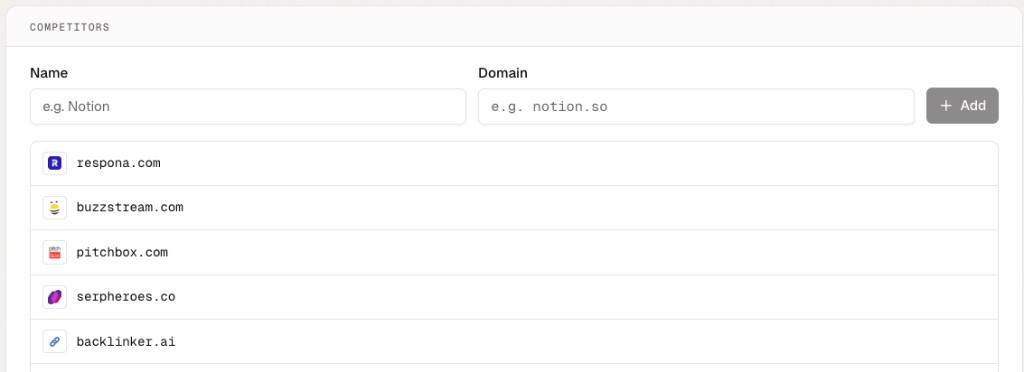
Use Settings → Competitors to add a domain or remove an outdated competitor. - 03
Correct a competitor
Remove the incorrect entry, then add it again with the correct name and domain.