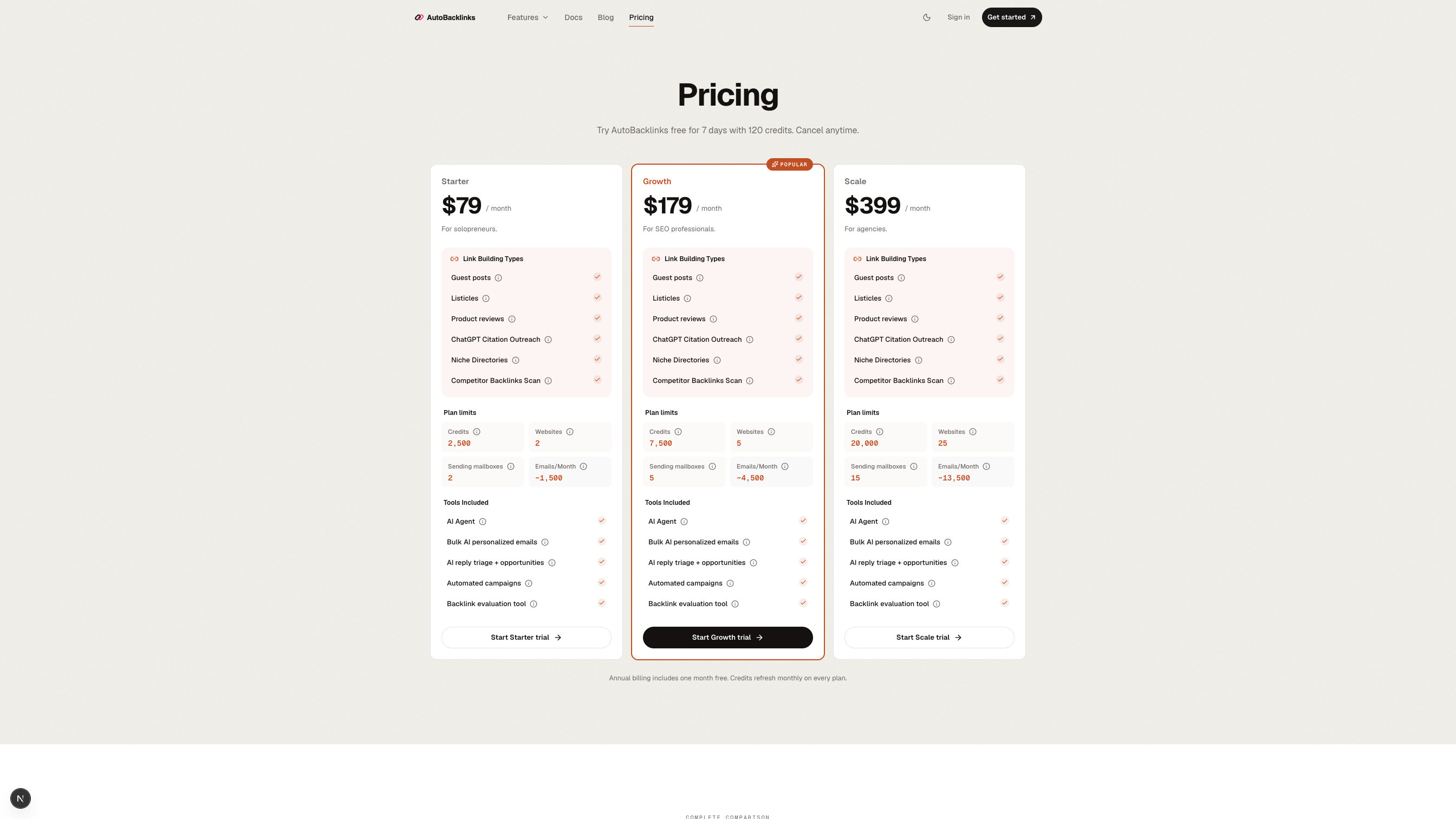

Add and manage multiple websites
Keep each brand or client in its own website workspace.
Add another website
- 01
Open the website switcher
Click the current website name at the top of the sidebar.
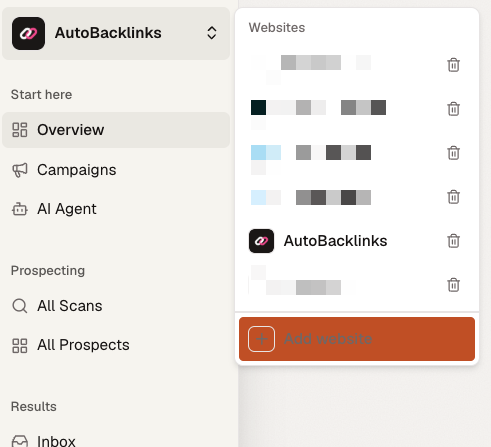
Open the website switcher, then choose Add website at the bottom. - 02
Click Add website
Enter the new domain and click Analyze website.
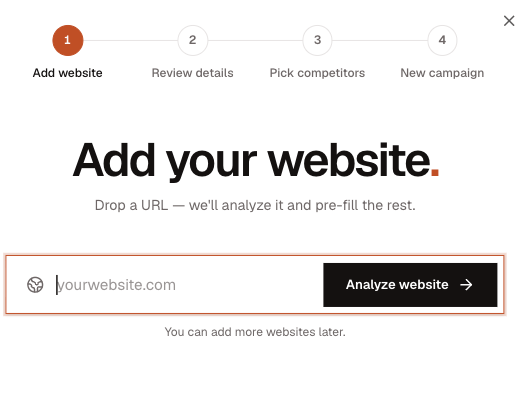
Enter the new domain and choose Analyze website. - 03
Review the website details
Correct the profile so it describes this website, not the website you were previously viewing.
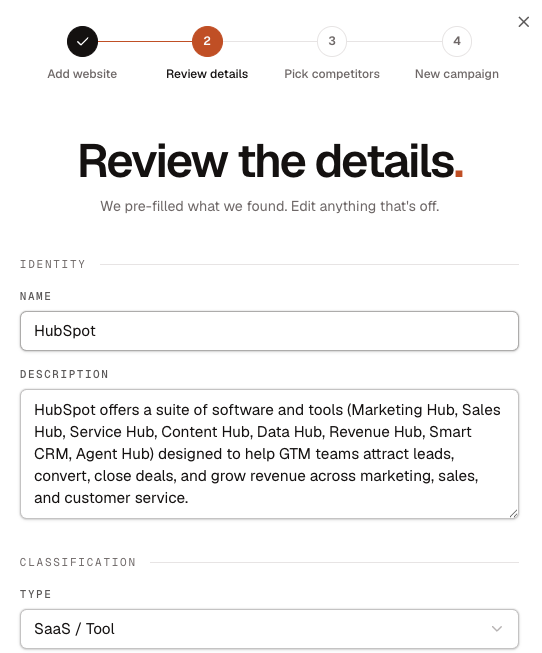
Check the new website's identity and classification. 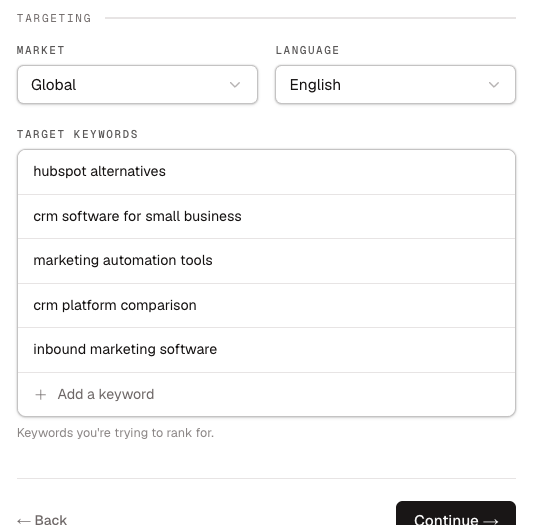
Set the market, language, and target keywords for the new website. - 04
Review competitors
Choose competitors for this website, then continue to its first campaign.
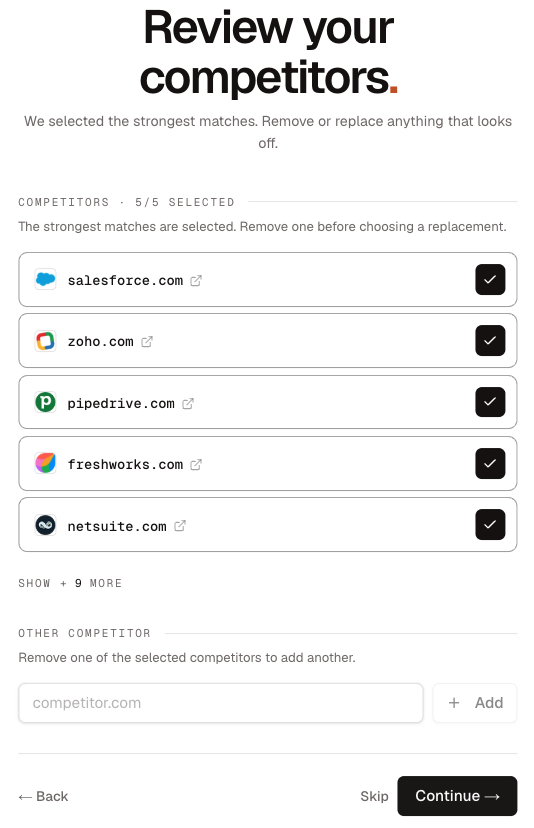
Confirm the strongest matches for this website before continuing.
Website limits by plan
- Starter: up to 2 websites
- Growth: up to 5 websites
- Scale: up to 25 websites