

Set up a mailbox
Outreach sends from your mailbox, with your name and domain.
- 01
Open Settings → Mailboxes
You can also connect a mailbox during the Mailbox step of campaign setup.
Open Settings → Mailboxes and click Connect mailbox to begin. - 02
Click Connect mailbox
Choose Google Workspace, Personal Gmail, or Other (SMTP / IMAP).
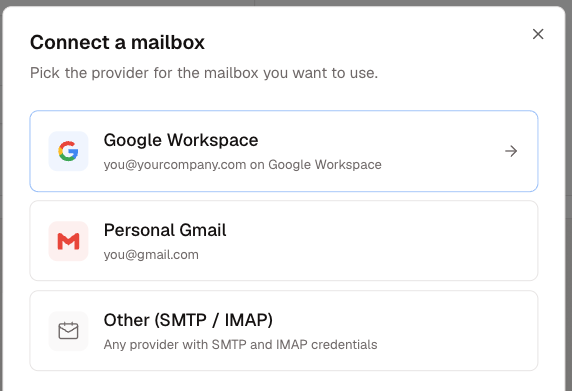
Choose the provider that matches the address you want to send from. - 03
Follow the connection steps
For Google, enter the sending address and an app password. For another provider, enter its sending and inbox server details.
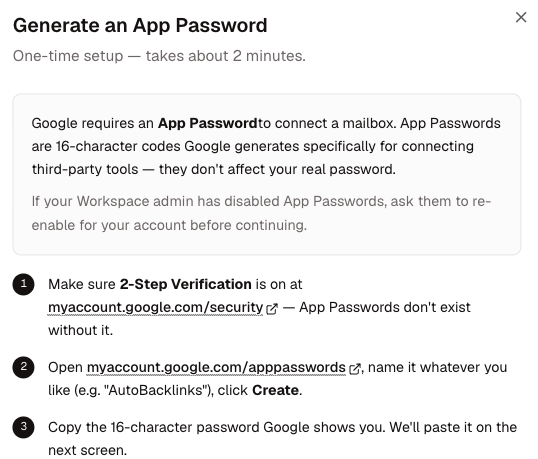
Google mailboxes use a dedicated App Password; your normal Google password is not shared with AutoBacklinks. 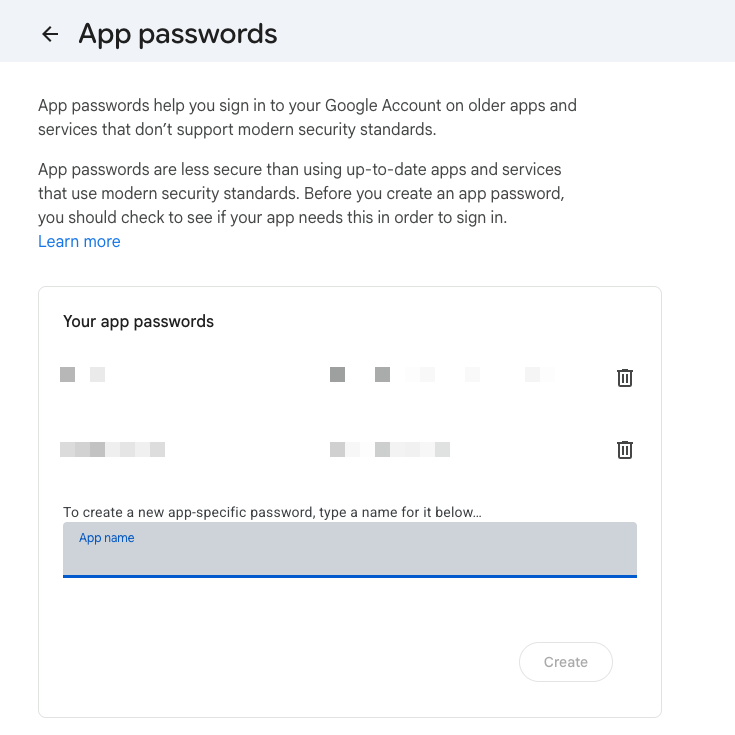
Open Google App passwords and enter a name for this connection. 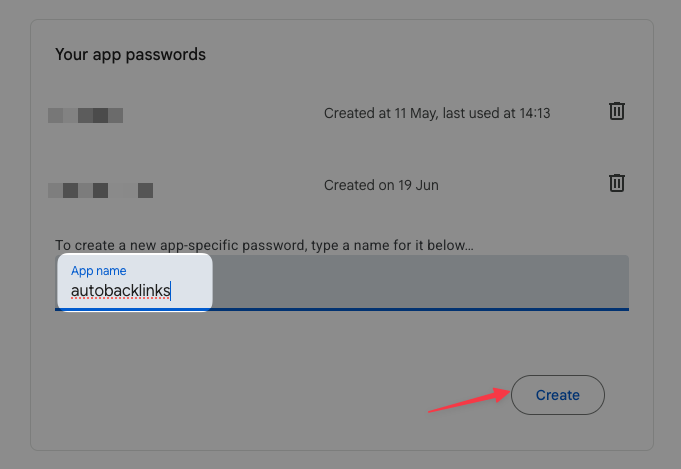
Use a recognizable name such as AutoBacklinks, then click Create. 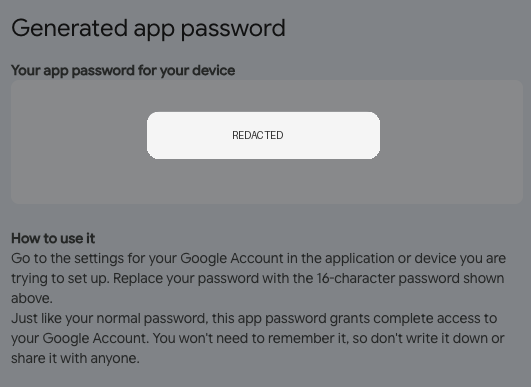
Copy the generated password into AutoBacklinks. Google only shows it once. - 04
Add sender details
Add the sender name that recipients should see in your outreach.
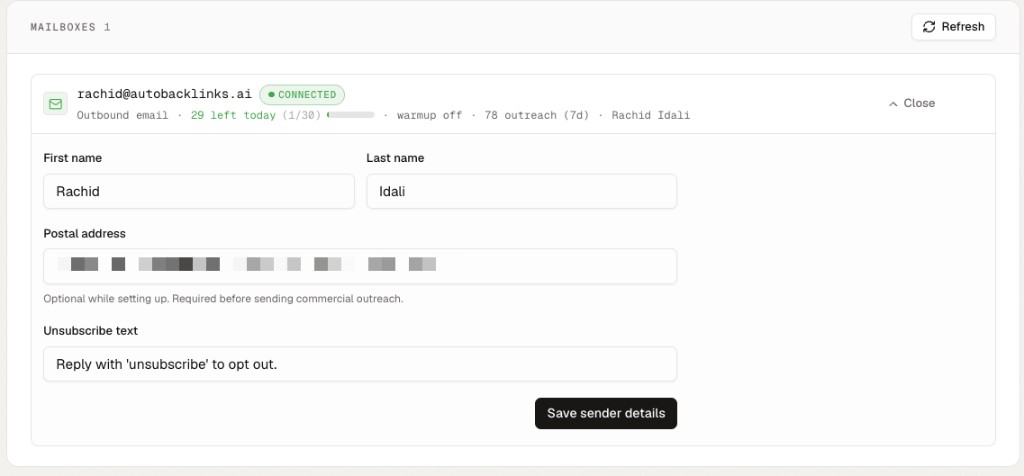
Complete the sender details before using automatic commercial outreach.
Mailbox limits by plan
- Starter: 2 mailboxes
- Growth: 5 mailboxes
- Scale: 15 mailboxes