

How automation works
Save the rules once, then let each run follow the same quality and sending controls.
An automation is a recurring campaign. On each scheduled run, AutoBacklinks finds new prospects, applies your saved quality rules, finds contacts, and prepares outreach without requiring you to rebuild the workflow.
Set up and control an automation
- 01
Choose a recurring schedule
During campaign setup, choose Weekly, Every 2 weeks, or Monthly. Turn on Start first run immediately when you do not want to wait for the first scheduled date. Review the estimated credit use per run before continuing.
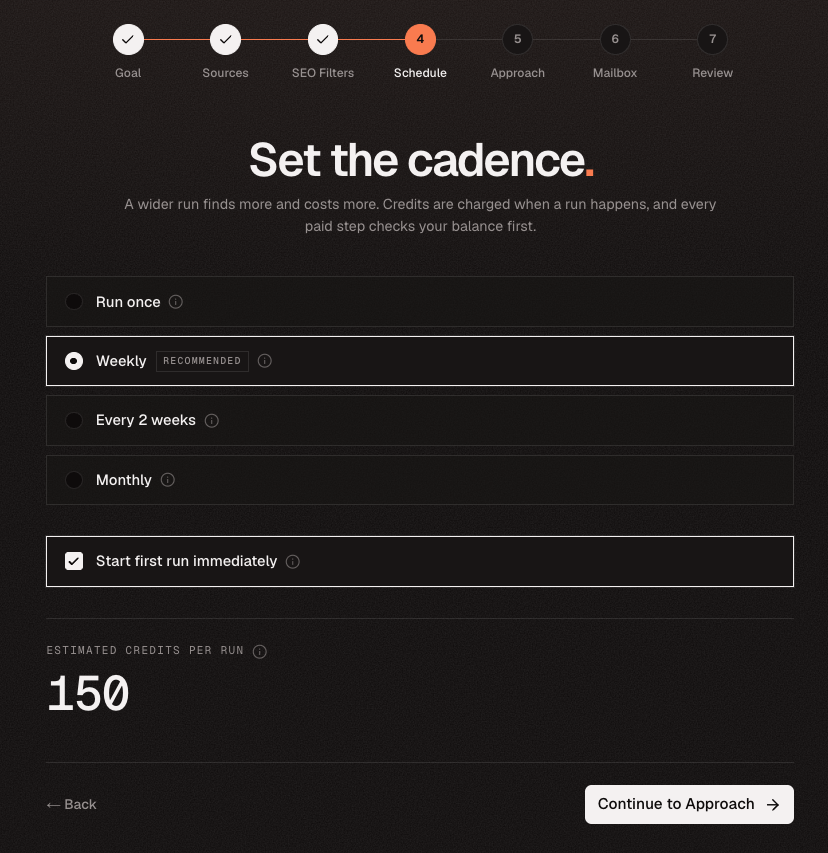
The cadence controls when each automated run starts. - 02
Save the discovery and quality rules
Your campaign sources, prospect limits, relevance checks, SEO filters, and outreach approach are reused on every run. Keep each automation focused on one audience and one campaign goal.
- 03
Choose review or automatic sending
Use Hold for my review when you want drafts to wait in the Queue. Choose Send automatically only after you trust the prospect quality and generated copy.
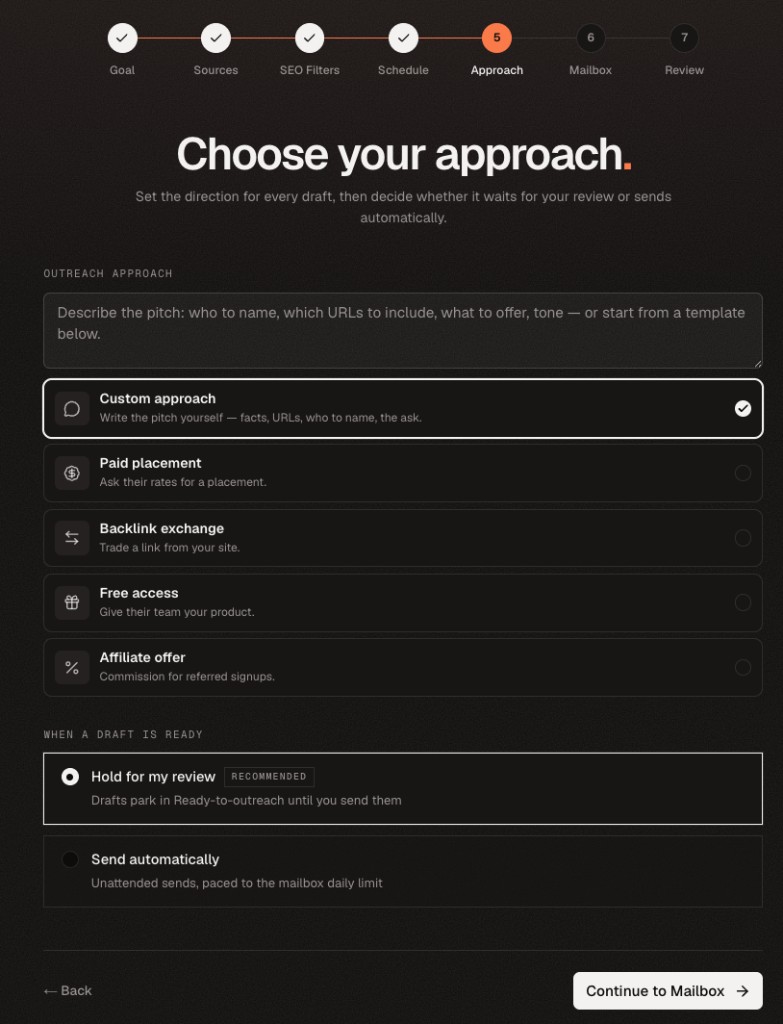
The approach guides every draft while review mode controls whether it can send automatically. - 04
Monitor every run
Open the campaign’s Activity tab to see prospects found, quality checks, verified contacts, generated drafts, and credits used for every run. Use campaign settings to change cadence or SEO filters for future runs.
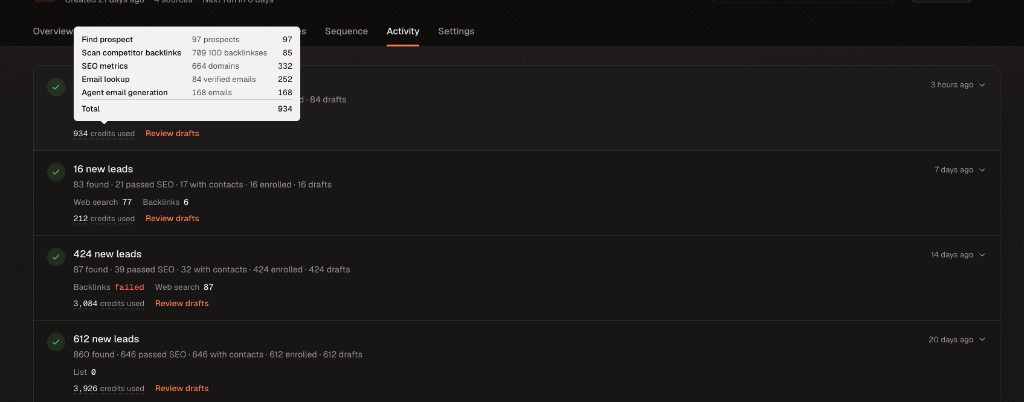
Activity keeps the complete history and credit breakdown for each run.
Manage automations from Overview
- 01
Review actions needed
The Actions needed panel brings paused outreach, drafts awaiting review, and prospects that still need copy into one list. Open the relevant campaign or Queue directly from each action.
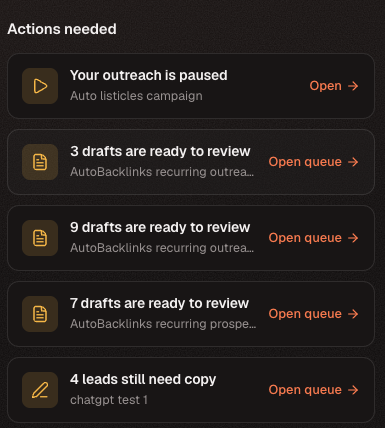
Use Actions needed to resolve work that is blocking an automation from continuing. - 02
See which campaigns run next
The Up next panel lists upcoming automated campaign runs and their scheduled date. Choose View all to review the complete automation schedule.
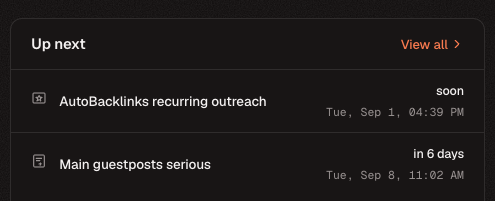
Check Up next to see which automation will run next and when it starts.