

Analyze competitor backlinks
Start with proof: websites that already link to businesses like yours.
Choose Analyze a Competitor’s Backlinks when you want to learn where a competitor earns links and find opportunities you may be able to replicate. You can analyze several competitors one after another and combine the useful results into the same prospect list.
Best for
- Finding publications, resource pages, and other sites proven to link in your market
- Building a prospect list from a competitor you already trust
- Combining opportunities from several competitors into one prospect list
- Understanding which link types are working for another brand
Run a competitor backlink scan
- 01
Choose the competitor to analyze
Use a saved competitor or type any domain in your message. For example: Analyze example.com’s backlinks and show me the strongest opportunities I can replicate.
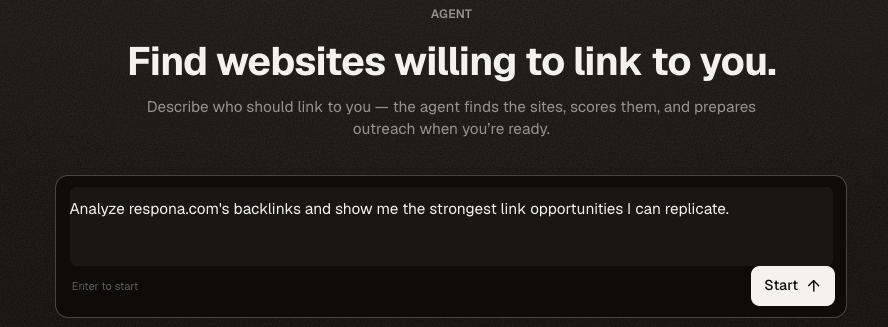
Name the competitor and ask for link opportunities you can realistically replicate. - 02
Review and approve the scan
Check the selected competitor and the maximum reserved credits. A scan has a minimum charge, then scales with the number of backlinks found; unused reserved credits are refunded.
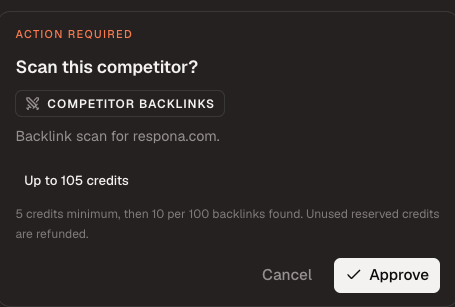
Approve only after confirming the competitor and possible credit use. - 03
Let AutoBacklinks classify the backlinks
The scan runs in the background and sorts backlinks into useful types such as listicles, resource pages, source citations, brand placements, directories, editorial links, and communities. You can close the progress window and return later.
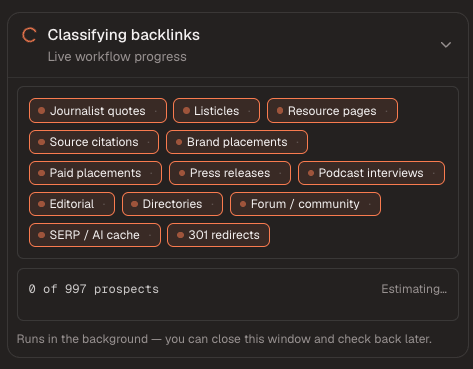
Classification turns a raw backlink export into understandable opportunity types. - 04
Review the discovery list
Review each referring domain, backlink type, spam score, anchor, page title, linked URL, and the competitor page receiving the link. Disqualify obvious mismatches and use Export CSV whenever you want a copy.
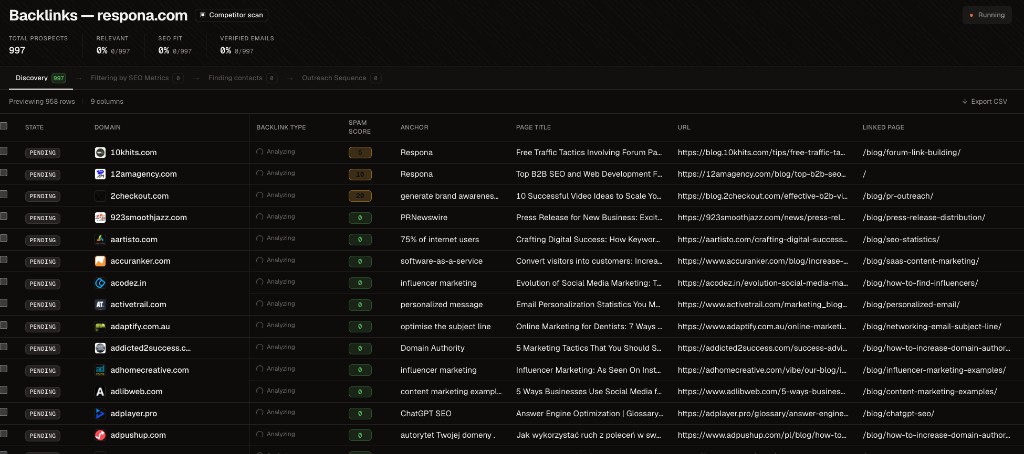
The discovery table shows the evidence behind every potential opportunity. - 05
Understand why each backlink matters
Open the backlink-type explanation to understand the suggested outreach angle. Then open Details to review relevance, quality metrics, the target page, and the exact competitor backlink before keeping the prospect.

Backlink classifications explain the relationship you may be able to replicate. 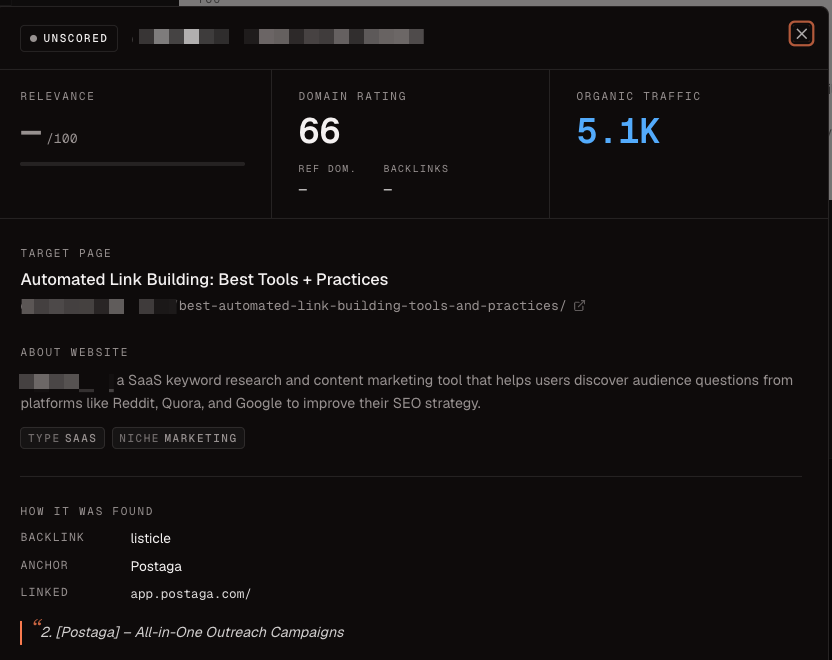
Use the full evidence to decide whether the website belongs in your prospect list. - 06
Scan another competitor
Choose Scan another competitor from the suggested next steps. Select one of your saved competitors or type any domain. New backlinks land in the same scan, duplicate domains are kept once, and shared links remain credited to every competitor that has them.
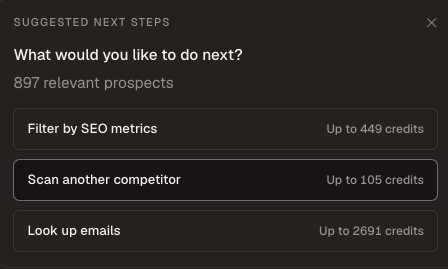
You can filter, find contacts, or expand the same list with another competitor. 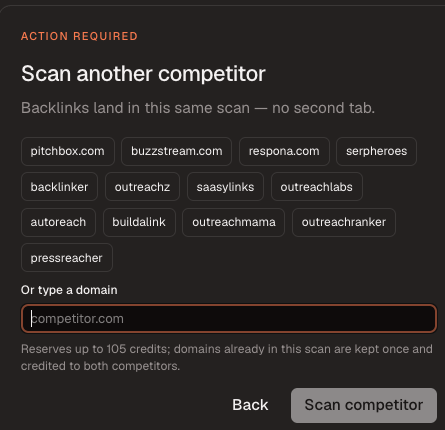
Choose an existing competitor or type any domain you want to analyze next. - 07
Filter the combined list by SEO metrics
Set the minimum Domain Rating and organic traffic for the prospects collected from every competitor. Review the passing websites and export the filtered list before continuing if needed.
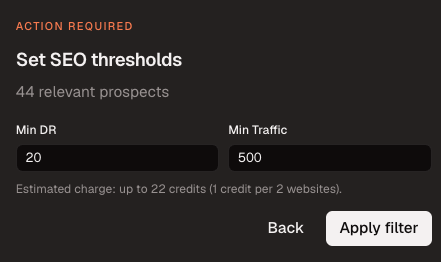
The same SEO quality gate can be applied after competitor discovery. 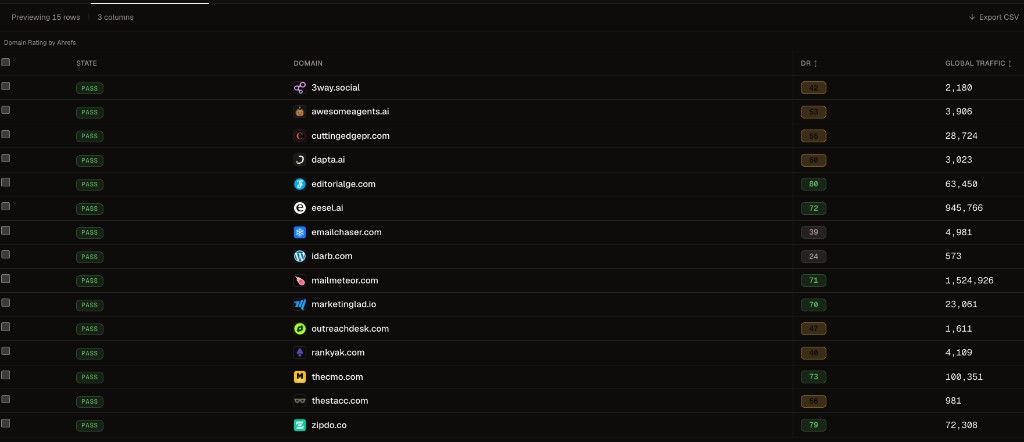
Only prospects that pass the selected thresholds continue as qualified. - 08
Find verified contacts
Approve email lookup for the qualified prospects. You pay only for verified addresses. Review each person’s name, role, email, and verification status, then disqualify unsuitable contacts or export the list.
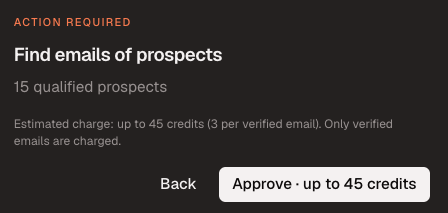
Review the maximum credit charge before contact lookup starts. 
Check the verified contacts before moving them into outreach. - 09
Add prospects to a campaign
Choose Add prospects to a campaign after filtering and contact discovery. Use an existing campaign when its goal and approach fit, or create a new campaign. Confirm the sending mailbox. Enrollment does not send emails yet.
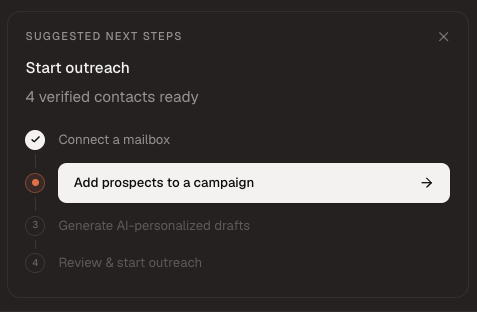
Campaign enrollment is the next step after qualified contacts are ready. 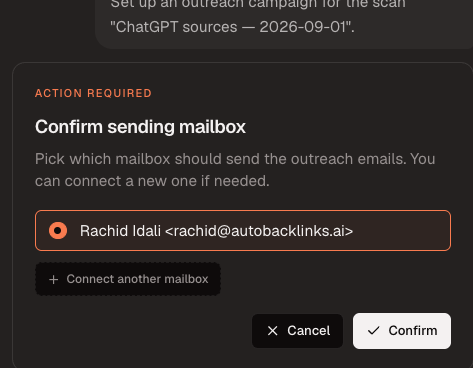
Confirm which connected mailbox should send the eventual outreach. - 10
Choose your outreach approach
Write your own instructions or start from Custom approach, Paid placement, Backlink exchange, Free access, or Affiliate offer. Every template is editable, so add the exact offer, links, names, tone, and call to action the drafts should use. For example, choose Affiliate offer and add:
Offer a 30% recurring commission for every referred customer.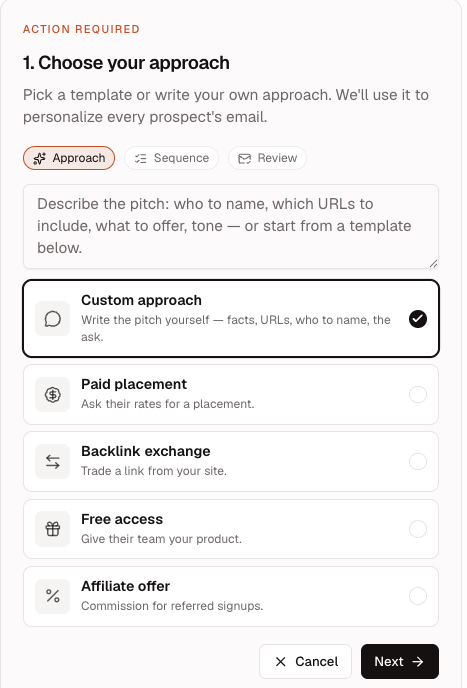
Choose a template or write your own approach, then edit the instructions with the details every draft should follow. - 11
Choose your email sequence
Choose 1, 2, or 3 emails and set the follow-up delay in days. The sequence applies to every selected prospect. A practical starting point is one initial email and one follow-up three days later.
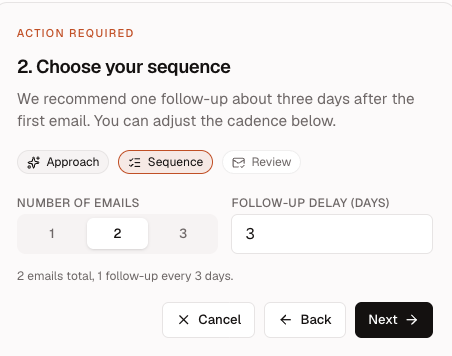
Set the number of emails and the delay before each follow-up. - 12
Review and generate the drafts
Review the approach, sequence, selected prospect count, and estimated credit use. The AI Agent generates drafts only for qualified prospects that have a verified, valid email address. Choose Generate emails when the summary is correct.
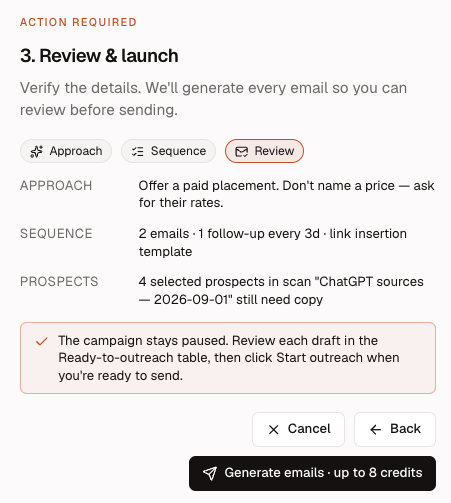
Confirm the shared instructions and eligible prospect count before generating emails. - 13
Review every generated draft
Open the Outreach Sequence table to check which prospects have ready drafts. Select a draft to read its subject, message, and follow-up before approving outreach. Exclude unsuitable prospects or revise the campaign instructions when the copy needs a different direction.
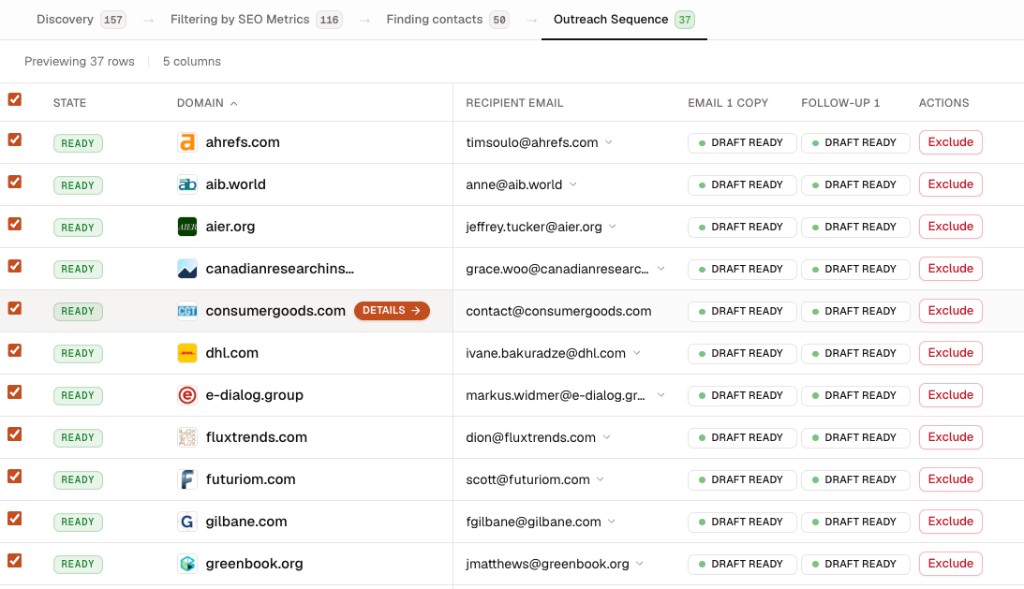
The Outreach Sequence table shows draft readiness for every eligible prospect. 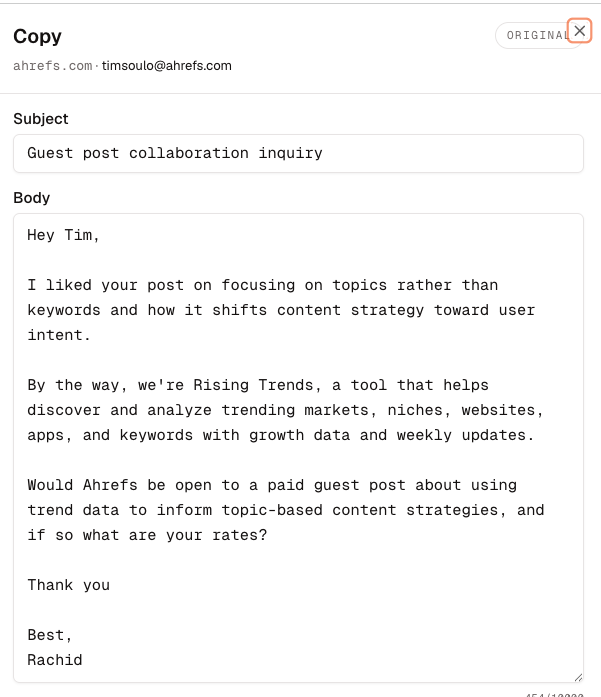
Open each draft to verify the recipient, subject, personalization, offer, and call to action.